Links
In HTML, URLs can be specified as either absolute or relative paths.
An absolute path is a complete URL, which links to an external website outside of your website directory, such as
<a href=”https://www.w3schools.com/html/“>W3 Schools</a>.
A relative path, on the other hand, links to a file within the same folder or server, like filename.html. So you write it as
<a href=”filename.html“>File in the same folder</a>
Linking to internal files require a relative address and close attention to file management. The ../ at the beginning of a relative path indicates that the file is located in a folder outside of the current directory. The ./ indicates that the file is in the same folder. Essentially, ../ or ./ directs the browser to search for the file starting from the folder where the current document resides. Example, the following link is telling the browser to go back by 1 folder and look in the “assignments” folder for the “filename.html” document:
<a href=”../assignments/filename.html“>
Linking to an email address is similar, but the mailto: property is added.
Example: <a href=”mailto:vieira@rmu.edu”>Debra Vieira</a>
Images
Linking to images works similarly to linking to files; you can use either absolute or relative paths. Images are embedded using the <img> tag, along with the src, width, height, and alt attributes. For instance, a relatively linked photo would be written like this: <img src="yourphoto.jpg" height="100" width="100" alt="This is a photo of me"/>. Note that the <img> tag is self-closing and does not require a closing tag.
Document Types & Character Sets
<!DOCTYPE html> must appear as the very first line of an HTML document. This declaration informs the browser about the type of document and specifies that the document is written in HTML5.
It’s important to specify a character set for web pages since they can be created in various languages. The HTML5 specification encourages using the UTF-8 character set, which covers almost all characters and symbols in the world. We will use UTF-8, and this is set by including a meta tag within the <head> section of the document.
Example:<head>Page Title
<meta charset=”UTF-8″>
<title> </title>
</head>
CSS gives your website rizz
When using Cascading Style Sheets (CSS), a declaration consists of a key-value pair where the CSS property name and the value is its corresponding setting. Declarations are used to define style properties and create rules for individual or groups of elements. The property name and value are separated by a colon, and each declaration must end with a semi-colon.
/*
CSS declaration format:
property-name: value;
*/

/* CSS declarations */
text-align: center;
color: purple;
width: 100px;
A selector in CSS can be any HTML element. For instance, if you want to style a paragraph (<p></p>), you would start with p and place your declarations inside curly brackets { }.
Declarations specify the appearance of elements using various properties like font, color, width, margin, border, and more. If you want to style your paragraph with Arial font, 12-point size, grey color, and double spacing, the CSS rule would look like this:
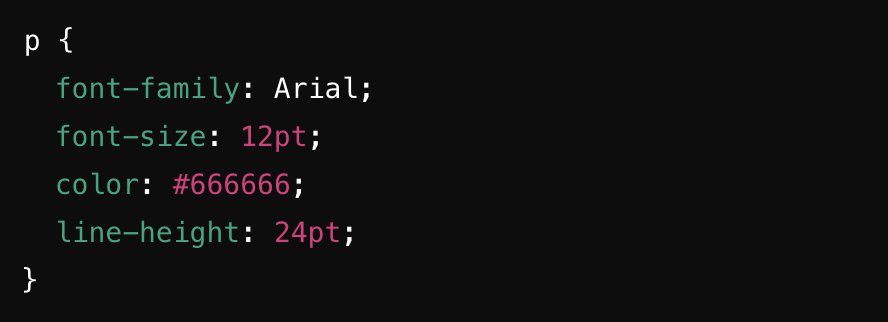
In this next example, the style attribute is used within the <p> tag to apply CSS properties directly to that paragraph. This method allows you to set styles directly on individual elements, but it’s typically best used for quick, specific changes rather than for extensive styling.

In Class
Continue work on your homepage and complete the following:
- Edit bio for spelling and grammar
- Add links to your email address and influences and top 5 sites
- Add a link to your syllabus challenge
- Add a photo of yourself
- Add CSS to style backgrounds, colors, margins and the fonts of the HTML tags you have already used.
- Upload changes and photo to the server, if not completed in class have posted before the start of class 3 [September 10].
Read: The Principles of Beautiful Web Design: Chapter 1: Layout and Composition